linie

Sunday, October 29, 2023

The Power of Azure App Service: Top Benefits Explained!

Hey there, back with another Azure insight. Today, we're all about the Azure App Service. Ever wondered what makes it stand out in the vast universe of cloud services? Stick around, and you'll find out!

  • Simplified Web Hosting

Azure App Service is like a genie in a bottle for web developers. With just a few clicks (or a single command if you're into CLI), you can deploy web apps, RESTful APIs, mobile app backends, and more. Whether you're into .NET, Java, Node.js, Python, or even PHP, Azure App Service has your back.

  • Scale On-the-Fly

One of the beauties of cloud services is scalability. Azure App Service is no different. Whether you're experiencing an unexpected surge in traffic or a regular increase in users, you can easily scale up or out. And the best part? You don’t need to manage the infrastructure; Azure takes care of that!

  • Integrated Developer Tools

Azure App Service seamlessly integrates with popular IDEs like Visual Studio and GitHub. Continuous integration and deployment (CI/CD) have never been easier. Push your code to your repository, and let Azure do the rest. From code to production without breaking a sweat!

  • Built-in Diagnostics & Monitoring

We all know the drill - something goes wrong, and we have no clue where to look. With Azure App Service's built-in diagnostics and monitoring features, you can get actionable insights into your app's operations. Track live HTTP traffic, detect performance anomalies, and troubleshoot issues in real-time.

  • Multi-Platform Support

Dreaming of a world where your web apps are accessible across various platforms? Dream no more! Azure App Service supports both Windows and Linux platforms. Plus, with the Azure Mobile Apps feature, you can easily build mobile app backends, ensuring your application stays connected everywhere.

  • Secure and Compliant

Last, but certainly not least, security is paramount. Azure App Service provides built-in security measures like authentication, DDoS protection, and secure socket layer (SSL) encryption. And for those worried about compliance, Azure's got a plethora of certifications to ensure your apps meet industry standards.

Wrapping Up:

Azure App Service isn't just another cloud service; it's a holistic platform tailored for developers seeking power, flexibility, and security. So, the next time you're thinking of deploying a web app, remember Azure App Service is waiting with open arms... or, better yet, open servers!

Until our next cloud rendezvous, keep those apps running smoothly!

Get User Logins with PowerShell on Windows Servers


Hello, dear readers!

I recently had the need to monitor user login activities on a Windows Server 2016 system. Ensuring only authorized access to critical servers is a fundamental part of cybersecurity. Traditional methods might involve sifting through the Event Viewer, a built-in utility to check various system logs, but this can be cumbersome. Therefore, I decided to write a PowerShell script that automates this process.

What Does the Script Do?

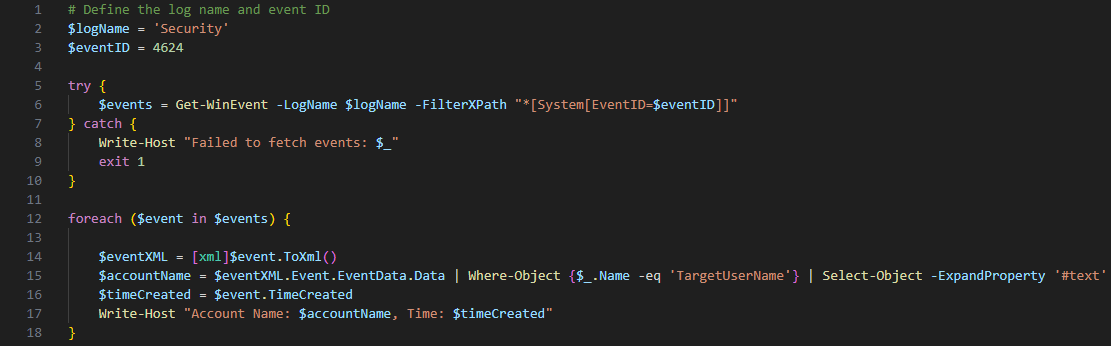
The PowerShell script fetches specific events—in this case, login events—from the Windows Security Event Log. It then extracts the username and the timestamp of each login event and displays it on the console. This could be particularly useful for auditing, monitoring unauthorized access, or even generating reports for analysis.

Prerequisites

To run this script, you'll need:

  • Windows Server 2016

  • PowerShell with administrative privileges

How to Run the Script

  1. Open PowerShell as an administrator.

  2. Copy and paste the script into the PowerShell console or save it as a .ps1 file and execute it.

Here's the script:

Limitations and Considerations

  1. You must run the script with administrative privileges to access the Security event log.

  2. The script currently filters for Event ID 4624, which corresponds to successful login events. You can change this to any other Event ID based on your monitoring needs.

Conclusion

This script helped me save a lot of time by automating the login monitoring process. It's a simple yet effective way to keep an eye on your Windows Server 2016 systems. Feel free to modify the script to suit your needs, and I hope it helps you as much as it helped me!

Tuesday, January 17, 2023

How use foreach loop in PowerShell?

 To implement Foreach-Object Parallel in Powershell, you can use the ForEach-Object -Parallel parameter. This parameter is available in PowerShell version 5.0 and above.

Using this parameter, you can process multiple items in parallel, instead of one item at a time. The syntax for the command is as follows:

1ForEach-Object -InputObject <Object[]> -Parallel { <ScriptBlock> } Where <Object[]>

is the array of objects you want to process and <ScriptBlock> is the script block containing the code to process each of the objects. For example, if you want to process a list of files in a directory, you can use the following command:

1Get-ChildItem -Path "C:\MyFolder" | ForEach-Object -Parallel { <ScriptBlock> } Where <ScriptBlock>

is the script block containing the code to process each file. You can also use the -ThrottleLimit to limit the number of jobs running at the same time. For example, if you want to process 5 files in parallel, you can use the following command:

1Get-ChildItem -Path "C:\MyFolder" | ForEach-Object -Parallel -ThrottleLimit 5 { <ScriptBlock> }

By using the -Parallel parameter, you can greatly increase the speed at which you can process data in PowerShell.